Editor tour
The Form Editor places its panels around the central workspace. Their location changes with the available screen width, but the panel names and workflows remain the same.
The active form and Workspace organization are saved in the current browser. See Save, import, and export for backup and portability.
Find a panel
Section titled “Find a panel”On wider screens, the editor uses two sidebars:
- The left sidebar contains Workspace, Fields, and Add Field.
- The right sidebar contains Field Edit, Validation, Styling, and Model.
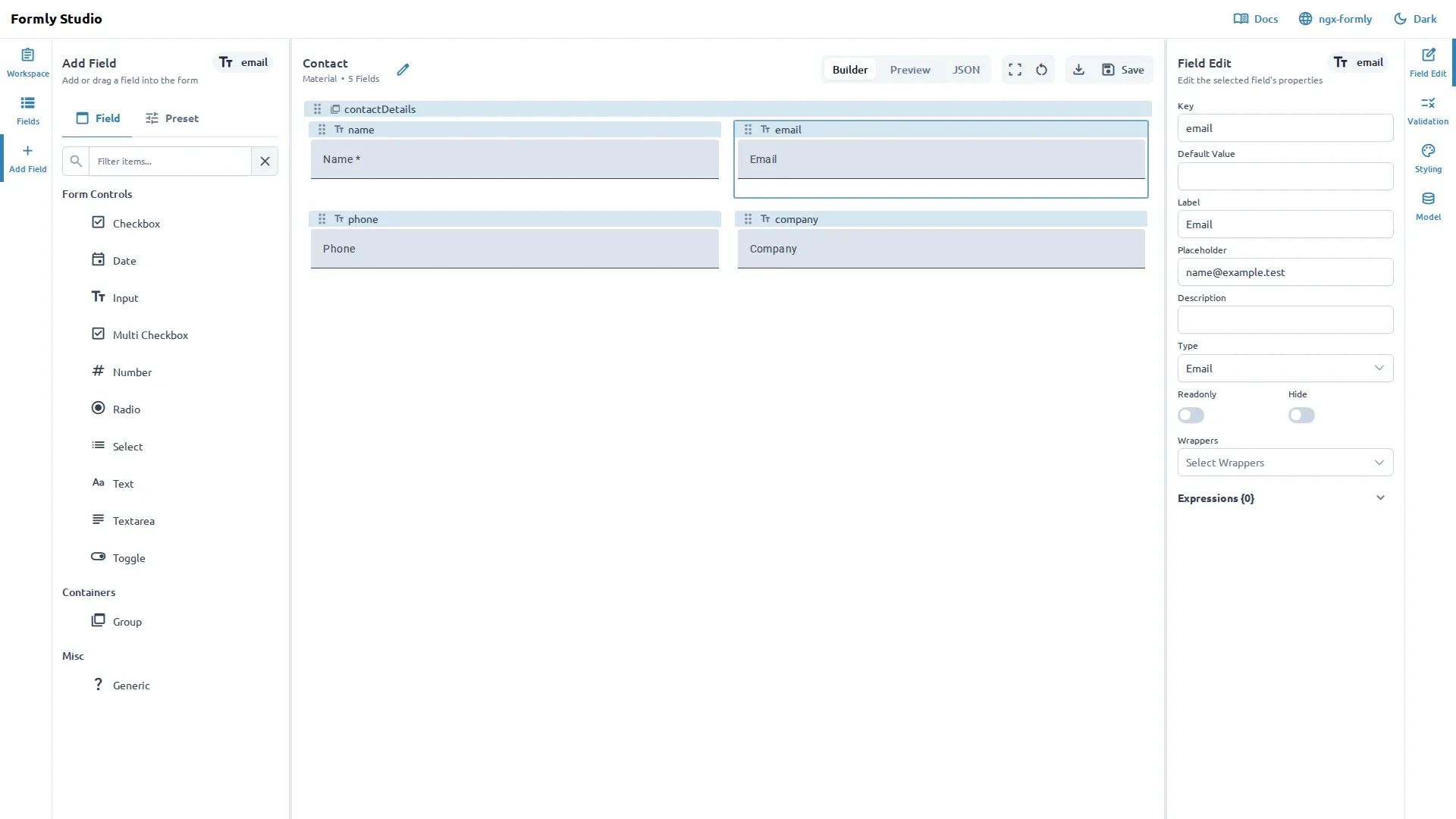
On smaller screens, one toolbar on the left contains all seven panels. Select a panel there to open it beside the canvas or in a drawer, depending on the available space. Instructions in these docs refer to panels by name rather than by sidebar position.
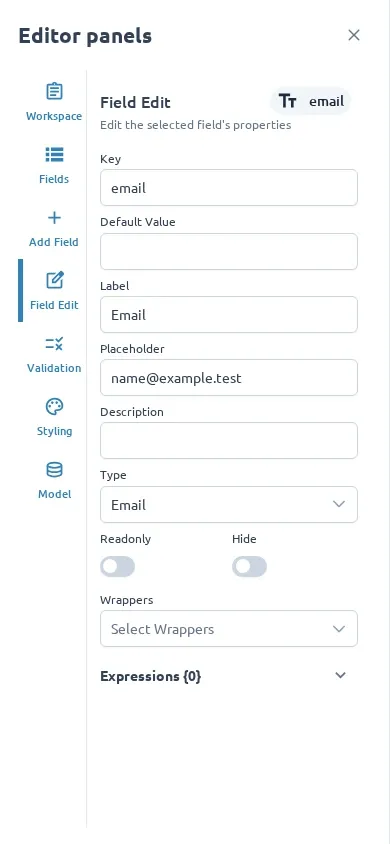
Use the panels for these tasks:
- Workspace: create, select, filter, and import forms.
- Fields: view the form structure and select a field.
- Add Field: add a field or a reusable preset.
- Field Edit: change properties for the selected field.
- Validation: configure validation rules and messages.
- Styling: adjust available styling options.
- Model: edit values used to test the form.
When there are no forms yet, the Workspace panel provides a Create Form action.
Center workspace
Section titled “Center workspace”The center workspace displays the active form. Use the display modes in the toolbar to switch between:
- Builder: edit the form visually.
- Preview: check the form as a user would see it.
- JSON: inspect the form configuration in a read-only view.
The toolbar also shows the form name, the active UI library, and the current field count.
Select a field in the canvas or Fields panel before opening Field Edit. Select Model when you want to test the form with example values.
Toolbar actions
Section titled “Toolbar actions”The toolbar includes these actions:
- Edit form name: rename the active form.
- Open preview: open a larger preview window.
- Clear Model: remove the current test values.
- Export Form: review and export the form JSON.
- Save Form: save the current form in the browser-local form store. Workspace actions persist their own folder and form hierarchy changes.
Use Manage your workspace for forms and folders. See Troubleshooting when a panel has nothing to show.