Preview and test
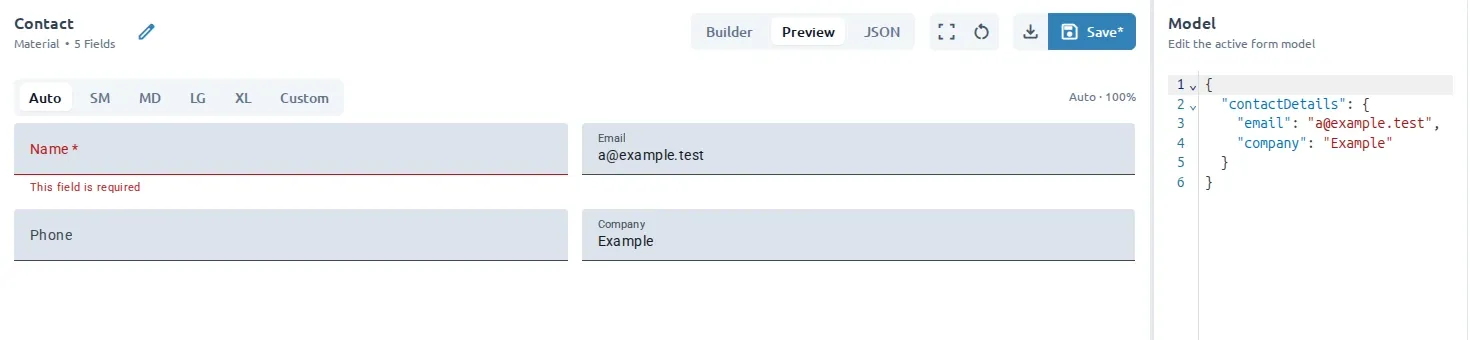
Use Preview to check the form without the Builder editing focus. Use Model to provide test values and verify how the form behaves with populated and empty data.
Switch to Preview
Section titled “Switch to Preview”- Open a form in Workspace.
- Select Preview in the display-mode control above the canvas.
- Complete fields and trigger validation as a user would.
Preview renders the active form using the current model values. Return to Builder when you need to select fields or change their configuration.
For a larger view, select Open preview. Close the preview dialog to return to the editor.
Test with Model values
Section titled “Test with Model values”Model is available in both Builder and Preview. Use it to edit test values, then switch between those modes to check how the form behaves with populated or empty data.
- Open Model in the sidebar.
- Edit the JSON values for the active form.
- Check the populated form.
Model values help you test realistic states without changing the field definitions. For example, enter a value for a text field, select an option, or provide a date to check how the form renders.
Check validation
Section titled “Check validation”In Preview, leave required fields empty or enter values that violate their configured rules. Confirm that the form shows the expected validation behavior and messages. Return to Builder, select the field, and use Field Edit to adjust its validation settings or messages.
Clear test values
Section titled “Clear test values”Select Clear Model in the toolbar to remove the current test values. This is useful when you want to repeat a test from an empty state.
Builder, Preview, and JSON
Section titled “Builder, Preview, and JSON”- Builder is the visual editing mode.
- Preview is the user-facing form view.
- JSON is a read-only view of the form field configuration.
Use Builder for ordinary authoring and Preview for behavior checks. Use JSON when you need to inspect the generated field configuration; make changes in Builder.
Use Add and configure fields when validation needs adjustment, or Inspect form JSON to review the configuration directly.